
Removing Bodycam Post-Processing Grain, Blur, and Edge Fringing
TXCIZ Bodycam 08. Graphics & Lighting strips heavy Unreal Engine 5 post-processing shaders across 8 toggles on Windows 10/11 64-bit, removing dynamic film grain, edge chromatic aberration, rotational motion blur, and depth-of-field smear that blur silhouettes and cause frame dips on 16 GB+ Steam setups.
While Reissad Studio added body-camera distortion for cinematic trailers, heavy screen-space grain and Lumen shadow darkness mask corner campers inside Airsoft, Hospital, and Russian Building. Stripping post-process filters improves both raw target readability and frame pacing.
Why UE5 Post-Processing Slows CQB Frame Pacing
Lumen global illumination paired with full-screen lens shaders forces constant GPU compute passes during fast doorway turns inside Airsoft and Russian Building. Bypassing analog camera blur restores sharp edges around distant player silhouettes while keeping the FPS Counter and frame-history graph steady inside 07. Radar & HUD Widgets.
Checking real-time frame history directly in the overlay confirms which post-processing toggles yield the largest stability gain on your GPU before saving a permanent preset.
Tuning the 8 Controls in 08. Graphics & Lighting
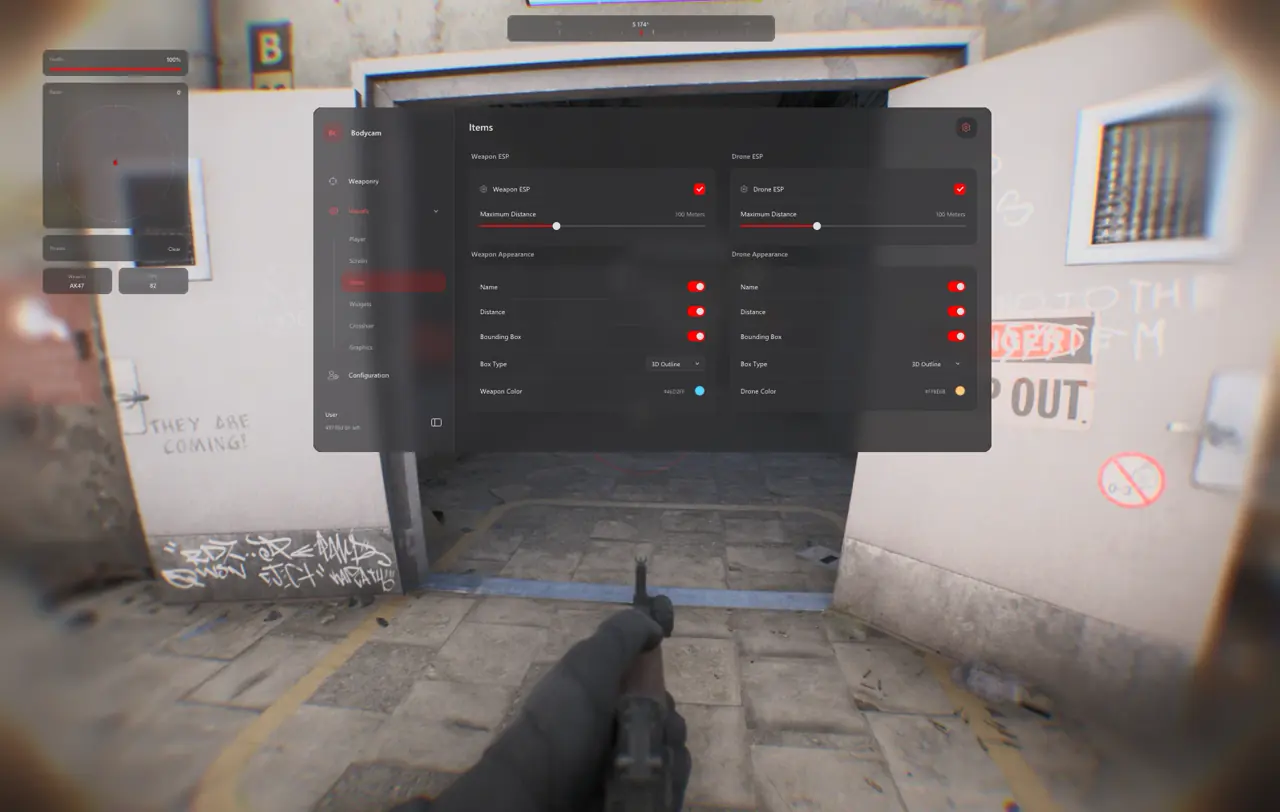
Activate Enable Graphics Overrides inside the TXCIZ Bodycam Suite to toggle each shader filter individually or revert cleanly via Restore Graphics Defaults.
Shader Stripping vs. Fullbright & Sun Color Calibration
Combining neutral shader cleanup with conservative Fullbright levels keeps outdoor daylight sections playable alongside pitch-black basements. Meanwhile, Widget Opacity (20%–100%) and HDR Display / SDR Brightness controls keep HUD telemetry readable on both standard and HDR panels.
- Disable Film Grain and Motion Blur: Eliminate rotational smear and noisy shadow grain during fast doorway turns.
- Disable Chromatic Aberration and Depth of Field: Keep peripheral sightlines crisp across 16:9 and 21:9 Borderless monitors.
- Fullbright (40%–60%) + Custom Sun Color: Lift crushed basement shadows without washing out bright courtyard skyboxes.
- Movable HUD Opacity (20%–100%): Drag FPS, Weapon Name, and Radar widgets off center hallways with Layout Reset backup.
Visual-Only Clarity Profile vs. Full Tactical Combat Profile
Construct two saved configs inside 10. Configuration & Interface so you swap between clean visual enhancement and full combat assistance in two clicks.
| Menu Component | Visual-Only Clarity Profile | Full Tactical Combat Profile | Visual and FPS Impact |
|---|---|---|---|
| 08. Graphics and Lighting | Film Grain OFF, Chromatic OFF, Fullbright 45% | All 4 Shaders OFF, Fullbright 65%, Custom Sun | Crisp frame pacing vs maximum dark-room exposure |
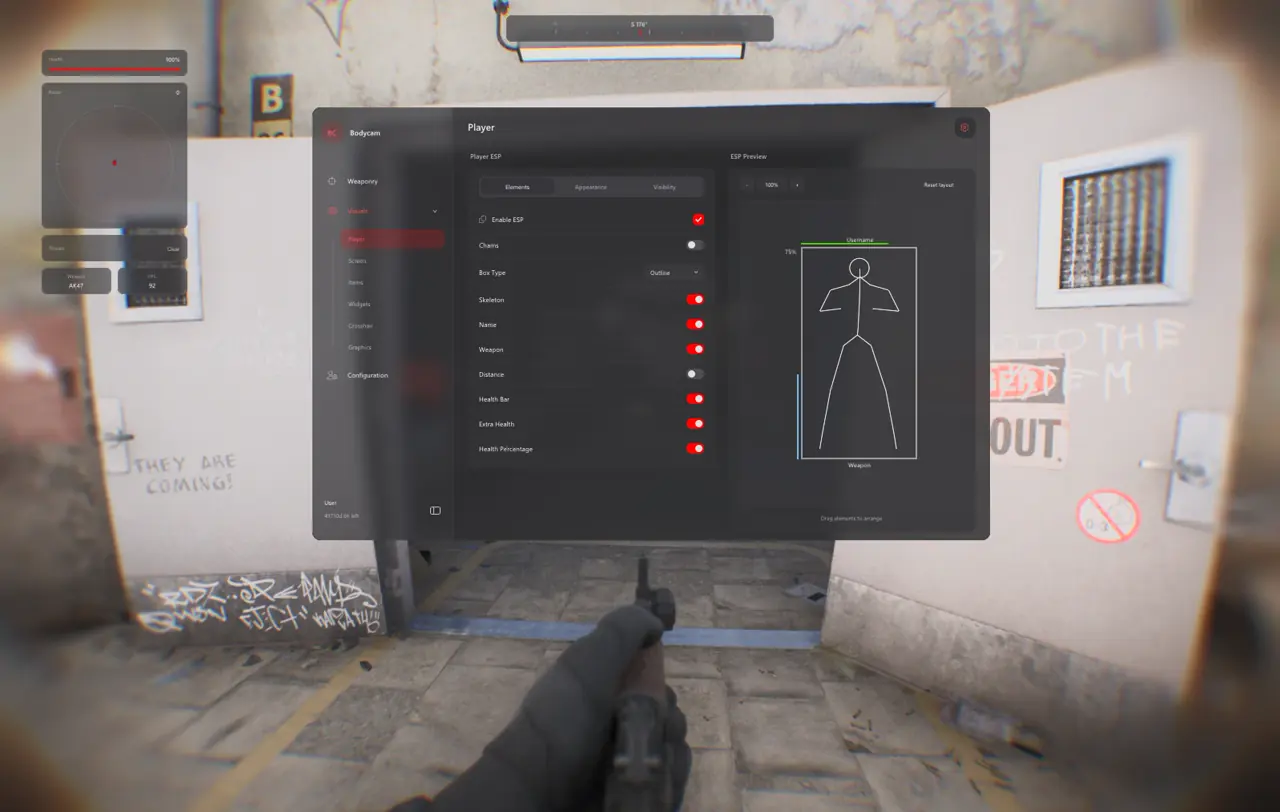
| 04. Player ESP and Chams | Low-Glow Chams (Green/Red), Names OFF | Outline Box, Skeleton, Health %, High-Glow Chams | Uncluttered visual immersion vs complete HUD telemetry |
| 07. Radar and HUD Widgets | FPS Counter ON, Compact 150 px 2D Radar | 220 px Radar, Compass Bar ON, Threat Warnings ON | Monitors UE5 frametimes vs 360-degree flank alerts |
| 01. Aimbot and Magic Bullet | Disabled (0% assist) | Chest Bone, 3 Ticks Delay, Damped Bezier | Pure manual gunplay vs automated target tracking |
- Load an offline practice lobby in Borderless mode and open the FPS Counter widget inside 07. Radar & HUD Widgets to measure baseline frametimes.
- Open 08. Graphics & Lighting, toggle Enable Graphics Overrides, and disable Film Grain, Chromatic Aberration, Motion Blur, and Depth of Field.
- Raise Fullbright gradually to 45%–60% and test Custom Sun Color until indoor hallways read clearly without outdoor glare.
- Add low-glow Player Chams and save the preset as
Bodycam_Clear_FPSin 10. Configuration & Interface. - Enable HDR/SDR Brightness Controls if running an HDR panel so overlay colors never wash out.
Prerequisites, Expected Outcome and Fast Triage
Requires 64-bit Windows 10/11 (24H2–26H2), 16 GB+ RAM, Windowed/Borderless display at 100% scale, and Step 2 prep per our Windows Setup Guide. Expect sharper textures, lifted shadow detail, and smoother UE5 frame history on F2 launch. If colors appear over-exposed, click Restore Graphics Defaults or lower Fullbright below 50%; verify Steam patch readiness on Live Cheat Status.
Continue optimizing your Bodycam setup with our Bodycam Complete 10-Group Feature Guide and Bodycam Controller, Crosshair and Trigger Guide, or browse live access plans on the Bodycam Product Page.
Confirm active build status on Live Cheat Status and finish prerequisite steps in the Windows Setup Guide prior to launching UE5 matches.

