

Lock-On vs. Trigger-Bot: Choosing Your Acquisition Model
TXCIZ Delta Force separates targeting into Lock-On and Trigger-Bot modes inside 01. Aimbot on 64-bit Windows 10 and Windows 11 under Anti-Cheat Expert (ACE). Lock-On steers your crosshair smoothly while holding Aim Key, whereas Trigger-Bot keeps mouse movement manual and fires when a target bone intersects your reticle.
On designated marksman rifles and bolt-action snipers, Trigger-Bot eliminates reaction delay without altering mouse feel. Both Mouse & Keyboard and native Xbox or DualSense controllers support independent Aim Key binding and Aim Key Delay.
Five Target Priorities, Bone Scan, and Target Retention
Five priority modes determine target switching whenever multiple enemies enter your targeting circle simultaneously, working alongside Bone Scan and Stick To Target. Whenever concrete sandbags hide a fighter's torso, Bone Scan checks multiple skeletal bones so tracking latches onto exposed neck or shoulder hitboxes cleanly.
| Priority Mode | Evaluation Metric | Optimal Combat Scenario | Tuning Tip |
|---|---|---|---|
| Closest to Crosshair | Screen-space angle from reticle | Building clears and multi-target rooms | Use a compact FOV radius to avoid target jumps |
| Closest by Distance | Absolute 3D world distance in meters | Close-quarters defense and flank reactions | Enable Stick To Target for stable locks |
| Lowest Health | Live target HP percentage | Squad wipes to finish weak targets quickly | Ideal for DMR and assault support roles |
| Selected Target Lock | Locks first target until dead or key released | Fast sprinting targets across open ground | Pair with 2–3 ticks Aim Key Delay |
| Threat-Based | Detects enemy aim vectors pointing at you | Counter-sniping and defensive angles | Pair with Threat Warnings HUD widget |
Cubic Bezier Control Points, Dynamic ADS, and Live Visualizer
Advanced Bezier Smoothing builds a non-linear cubic path using Control Point 1 for initial departure acceleration and Control Point 2 for terminal deceleration onto the target bone. Tuning Number of Points, Random Factor, and under-5% Endpoint Noise adds subtle natural hand variance visible inside the real-time Smoothing Visualizer.
Dynamic ADS Multiplier shrinks your hip-fire FOV proportionally when zooming 4x–8x sniper scopes, while Drag & Drop ESP Preview and 2D Radar Scale arrange telemetry before deployment. Keeping your hip-fire FOV tight around 3.5°–5.0° ensures close-quarters pushes stay snappy without pulling toward adjacent squads.
- S-Curve Preview: Shape a gentle S-curve inside Smoothing Visualizer rather than steep initial Control Point 1 spikes.
- Endpoint Noise Cap: Keep Endpoint Noise below 5% so distant long-range tracking stays steady without flutter.
- Dynamic ADS Range: Run 0.5x–0.7x for holographic/2x assault optics and 0.45x for magnified marksman scopes.
- Radar & ESP Layout: Calibrate Radar Size, Radar Scale, Blip Radius, and Drag & Drop ESP Preview before deploying.
Avoiding Linear Snapping in Spectator and Replay Views
Gentle S-curves with 2–3 ticks Aim Key Delay eliminate straight-line robotic cursor travel during rapid target acquisitions across indoor compounds and ridgelines.
7-Step Delta Force Aimbot & Bezier Calibration Protocol
Follow this seven-step firing-range workflow to dial in smooth, predictable tracking across both hip-fire and magnified optics:
- Create and save a Baseline Default slot inside 06. Misc → Config Browser.
- Bind your Aim Key (or left controller trigger) and set Aim Key Delay to 2 ticks.
- Select Upper Chest or Neck as primary bone and activate Bone Scan for cover peeks.
- Choose Closest to Crosshair priority, disable Target Non-Visible, and turn on Stick To Target.
- Enable FOV Circle temporarily, set a compact hip-fire radius, and set Dynamic ADS Multiplier to 0.5x–0.7x.
- Open Advanced Bezier Smoothing, watch the Smoothing Visualizer, and tune a gentle S-curve with 2% endpoint noise.
- Disable FOV Circle visibility if streaming, align 2D Radar in Group 04, and save the active config.
Prerequisites, Expected Outcome & Fast Triage
Ensure consistent display and RAM headroom so Bezier curve interpolation stays locked to monitor refresh rate.
- Prerequisites: 64-bit Windows 10/11 (24H2–26H2), 16 GB+ RAM, Borderless Windowed at 100% DPI, Step 2 security OFF, and /status Undetected.
- Expected Outcome: Smoothing Visualizer renders a smooth curved path, Dynamic ADS contracts FOV cleanly on scopes, and Stick To Target holds locks.
- Fast Triage: If reticle jumps between enemies, narrow FOV Circle and verify Stick To Target is ON; if Trigger-Bot stalls, lower Aim Key Delay.
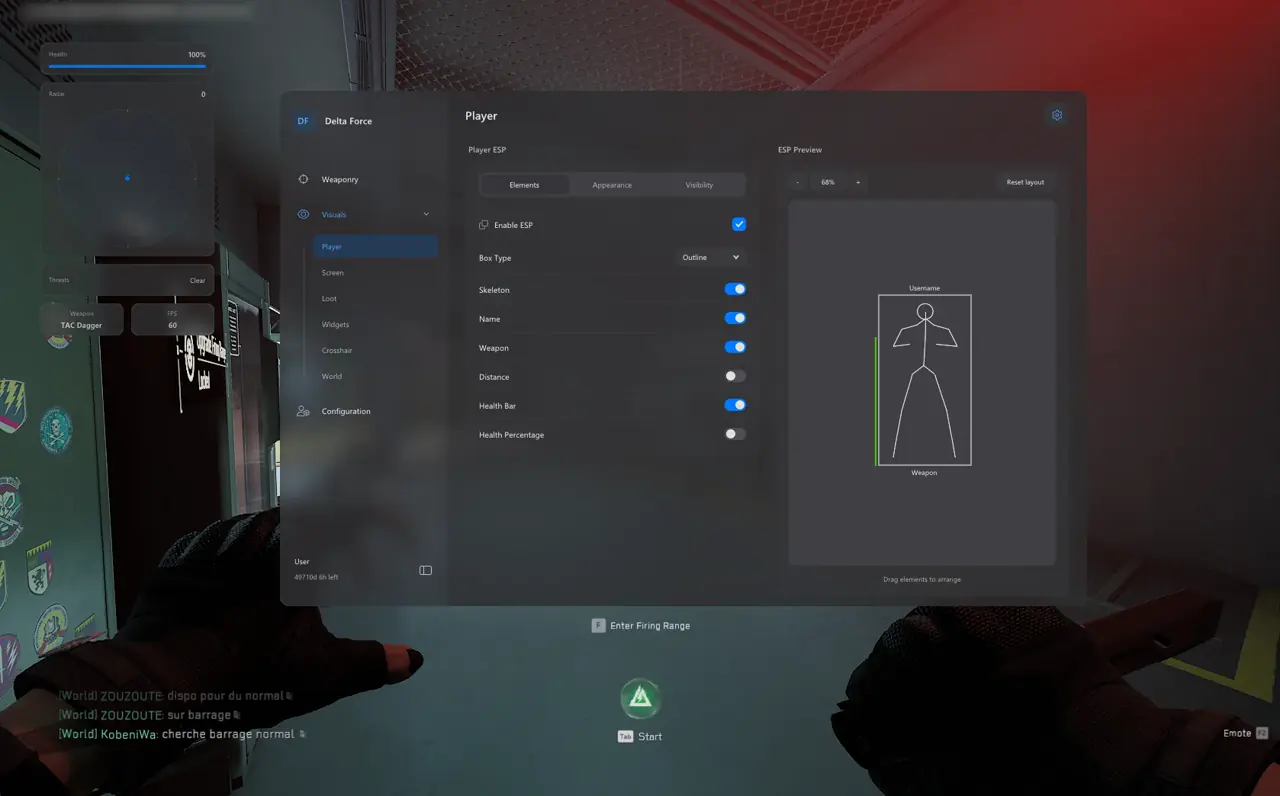
Calibrating Drag & Drop ESP Preview alongside your 2D Radar scale guarantees peripheral flank markers and health percentages never overlap your target bone during compound peeks.
Review all seven tabs in the Delta Force Complete Feature & Setup Guide, configure 32v32 scopes in the Havoc Warfare Radar & OBS Guide, and tune extraction filters in the Hazard Operations Loot & Extraction ESP Guide. Explore Delta Force PC Cheats, Live Cheat Status, and the Windows 10 & 11 Setup Guide.

