
Player ESP Box Styles, Skeletons, and Six-Role Color Coding
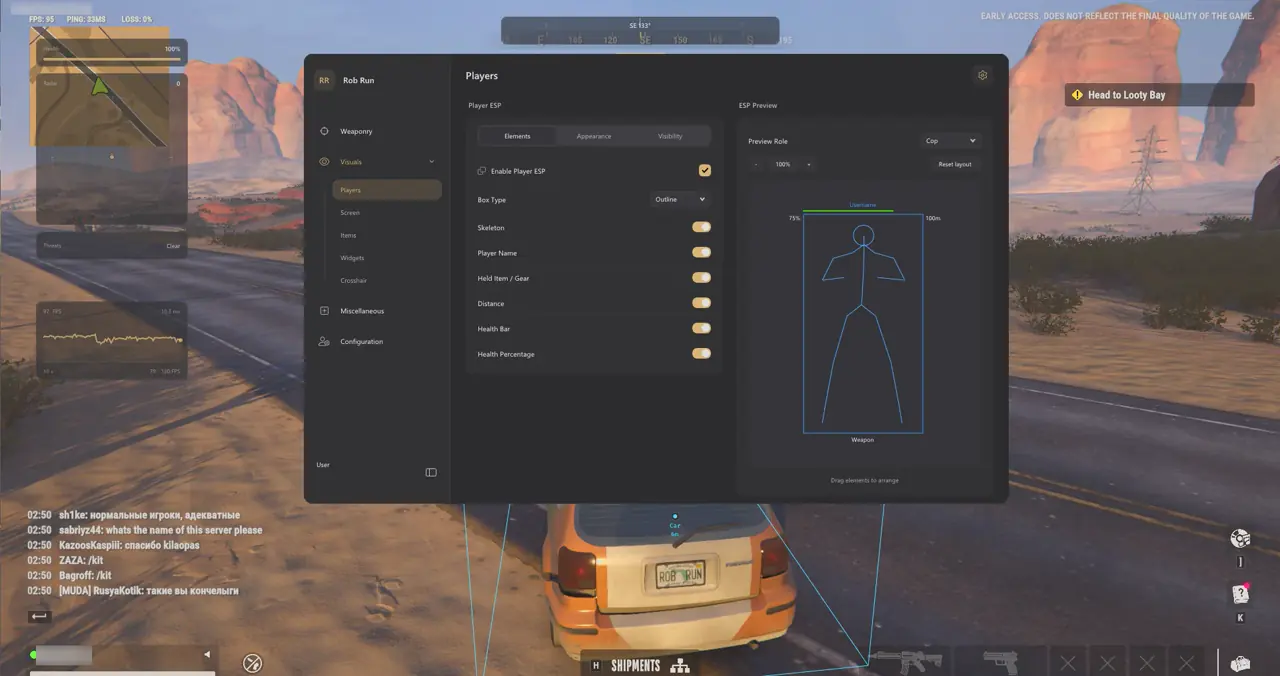
TXCIZ Rob Run Player ESP draws 2D outline boxes, corner boxes, filled boxes, smooth bone skeletons, player names, held gear, distance tags, and health bars across six editable role colors on Windows 10 and Windows 11. Uniform role colors separate Cops (blue), Criminals (red), Civilians (green), Prisoners (orange), Other (purple), and Unknown (gray) at a glance.
Every role color under Appearance applies uniformly to world boxes, 2D Radar blips, Compass Bar markers, and Off-Screen Arrows. Use Interactive ESP Preview with role switcher, font-size slider, and preview zoom to position held-item labels, health percentages, and armor telemetry before deploying into active districts.
Group 04 also displays Armor Presence plus exact armor segment counts whenever detailed armor telemetry is available, and shows Loadout Value estimates when the game broadcasts inventory details.
- Corner Boxes: Best default for tight indoor sightlines across jewelry stores, banks, and multi-floor apartments.
- Held Item / Gear: Displays the exact firearm or tool equipped so armed threats stand out immediately.
- Interactive ESP Preview: Reorder name, health, distance, and armor rows inside the live preview frame.
Avoiding Label Overlap in Dense City Blocks
Capping Player Render Distance around 150 m for skeletons and disabling remote Loadout Value rows keeps downtown intersections crisp without hiding doorway silhouettes.
Visibility Filters: Controlling Through-Wall Boxes vs. Line of Sight
The Player ESP visibility section isolates screen display rules into four toggles—Self ESP, Show Allies / Non-Targets, Show Targets, and Criminals Only—plus the Ignore Non-Visible occlusion switch. Activating Ignore Non-Visible suppresses overlays on characters completely behind solid walls while keeping exposed fighters highlighted cleanly.
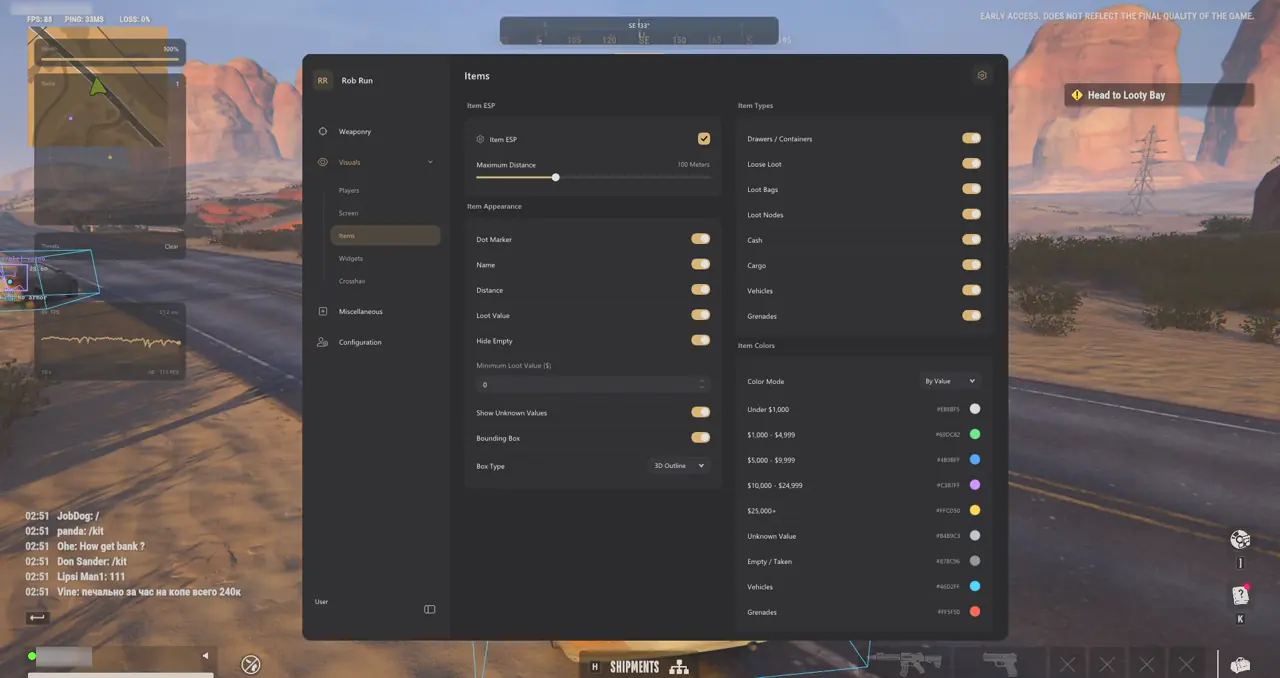
Visibility switches inside 04. Player ESP & Roles affect visual rendering only and never override mandatory Aimbot teammate exclusions or Cop/Criminal target switches. Review role exclusion rules in our Rob Run Cop & Criminal Role Filter Guide, or inspect world item pricing in the Rob Run Loot ESP & Container Previews Guide.
During Police Patrol lobbies, toggling Criminals Only strips Civilian and allied tags off busy intersections so only active Criminal boxes remain drawn across buildings and alleyways. Pairing Corner Boxes with thin 1 px outlines keeps close doorway angles crisp while still alerting you to distant rooftop snipers.
08. Radar & Awareness: 2D Radar, Compass Bar, and Off-Screen Arrows
Group 08 tracks flanking Cops, fleeing Criminals, and vehicles outside your camera viewport without cluttering center screen geometry with distant world text.
| Awareness Control | Configurable Parameters | Best Tactical Application |
|---|---|---|
| 2D Radar Widget | Panel size, world zoom scale, blip radius | Spot flanking Cops or Criminals across surrounding city blocks |
| Compass Bar | Bar width, range filter, player and team pins | Track directional azimuths along long streets without world box clutter |
| Directional FOV Compass | FOV clamping, distance scaling | Keep edge pins aligned smoothly around your targeting FOV perimeter |
| Off-Screen Arrows | Marker size, screen padding, distance scaling | Instant peripheral alerts when drivers or rushers approach outside view |
| Snaplines & Threat Widget | Start position, thickness, relationship filter, warning width | Highlight direct ambush lines and active threat warning notifications |
- 2D Radar Scaling: Pair a 120 px–140 px panel with medium world zoom so nearby alley flankers separate clearly.
- Directional Arrows: Use edge padding to keep off-screen arrows clear of your health bar and weapon HUD widgets.
Step-by-Step Two-Profile Wallhack & Radar Setup
Building two separate profiles—Combat Minimal and Urban Recon—lets you shift between indoor firefights and wide district scouting in two clicks:
- Open 04. Player ESP & Roles, select Corner Boxes and Skeletons, and set Player Render Distance to 150 m.
- Assign high-contrast Cop (blue) and Criminal (red) colors and test label spacing in Interactive ESP Preview.
- Open 08. Radar & Awareness, place the 2D Radar in your top-left corner, and tune world scale for 120 m urban coverage.
- Enable Off-Screen Arrows with comfortable edge padding and keep long Snaplines off during indoor CQB.
- Save this baseline in 14. Configuration Profiles as Combat Minimal, then save a wider 250 m preset as Urban Recon.
Prerequisites, Expected Outcome & Fast Triage
Proper Windows display scaling and Borderless alignment keep 2D Radar blips and bounding boxes locked accurately onto character skeletons.
- Prerequisites: 64-bit Windows 10/11 (24H2–26H2), 8 GB+ RAM, Windowed/Borderless at 100% scale, Step 2 security OFF, and /status Undetected.
- Expected Outcome: Pressing F2 at Main Menu loads the overlay; Insert toggles Corner Boxes, Skeletons, and 2D Radar invisibly on OBS Game Capture.
- Fast Triage: If boxes drift, exit Exclusive Fullscreen and lock Windows scale to 100%; on 0x00000001 redo Step 2 and enable WARP (1.1.1.1).
Explore all 14 menu groups in our Rob Run Complete Feature & Setup Guide or troubleshoot Windows errors in the Txcizware-Loader.exe Security & Error Diagnostics Guide. Inspect live builds on Rob Run PC Cheats, check uptime on Live Cheat Status, and review display setup in the Windows 10 & 11 Setup Guide.

