
Activation Keys, Aim Key Delay, and Five Target Priority Modes
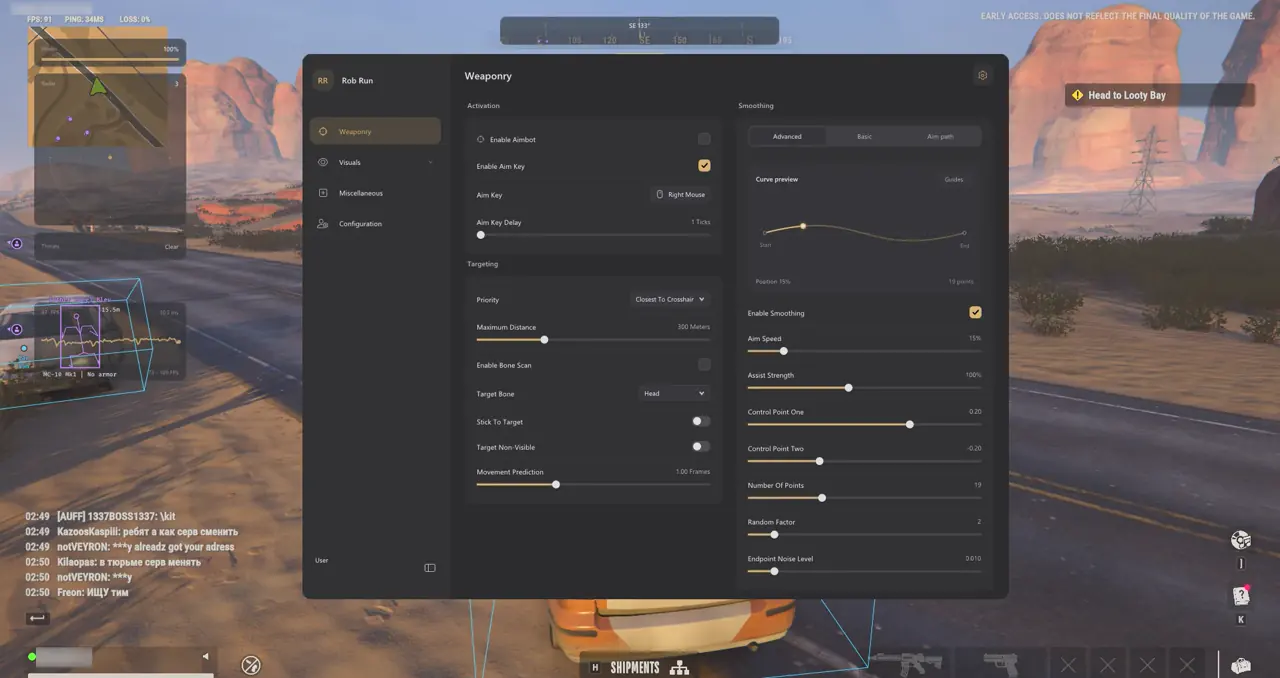
Predictable Rob Run aimbot calibration starts by binding a dedicated Aim Key and setting Aim Key Delay inside Group 01 before touching smoothing sliders. Combining your hold key with five target priorities—Crosshair, Bone, Distance, Health, and FOV—alongside a 25 m to 1,000 m engagement cap and Stick-to-Target keeps target switching controlled.
Leaving Target Non-Visible disabled prevents premature cursor pull through concrete walls or shipping containers before a Cop or Criminal peeks out. Mandatory friendly exclusions strip clanmates, party members, battle teammates, dead players, and unresolved entities before any priority calculation begins.
- Crosshair Priority: Best general-purpose setting for natural micro-adjustments around your reticle.
- Stick-to-Target: Holds your active lock until the opponent drops or you release your Aim Key.
- Maximum Target Distance (25–1,000 m): Cap at 200–350 m for street gunfights to prevent distant crosshair pulls.
- Visibility Discipline: Keep Target Non-Visible disabled so solid steel doors and alley walls never cause unnatural pre-aim pulls before targets peek.
If you play across both Cop Patrol and Criminal Heist roles, review role-switch logic in our Rob Run Cop & Criminal Role Filter Guide so friendly targets stay safely excluded.
Targeting FOV Radius, Dynamic ADS Multiplier, and Camera FOV
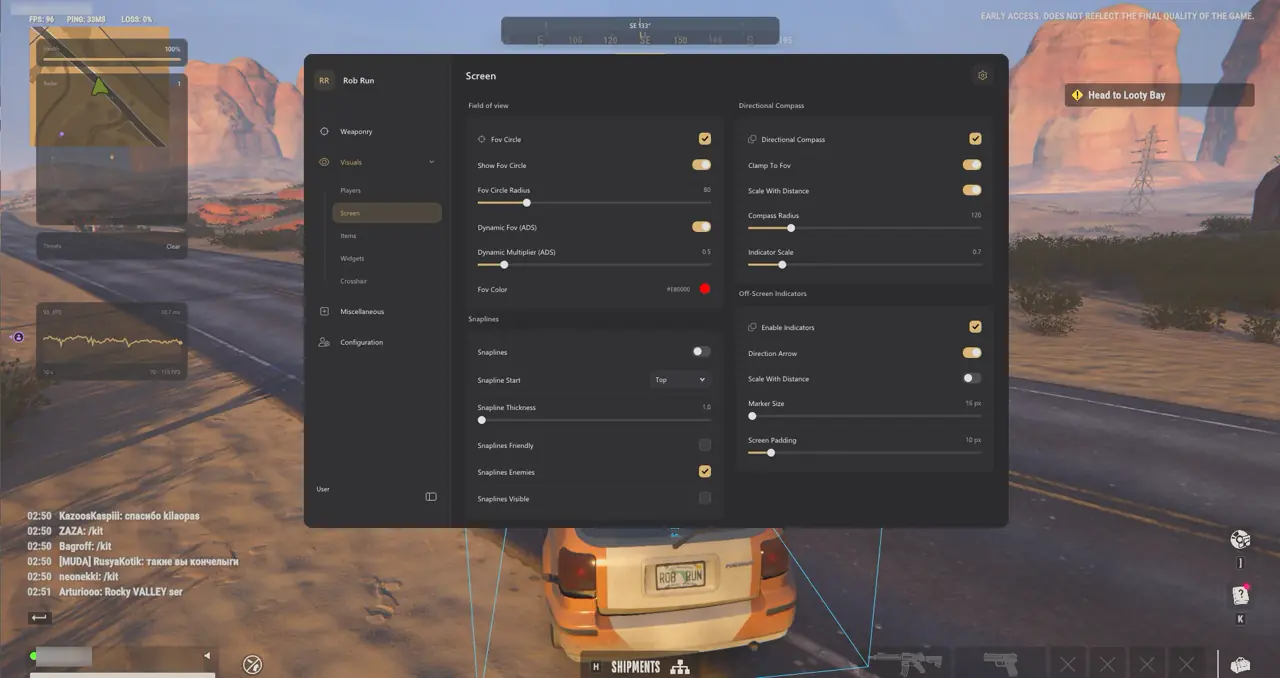
Two controls in the Rob Run menu share the abbreviation FOV, yet they govern completely independent systems across Group 03 and Group 10.
| Setting Name | Menu Group | Function & Recommended Tuning |
|---|---|---|
| Targeting FOV Radius | 03. Smoothing & Aim FOV | Defines the screen-space circle around your crosshair where eligible targets qualify |
| Dynamic ADS Multiplier | 03. Smoothing & Aim FOV | Automatically scales the targeting circle when aiming down sights to tame scoped sensitivity |
| Camera FOV Override | 10. Camera & Lighting | Adjusts third-person lens width (60°–140°) for visual comfort without expanding Aimbot reach |
Isolating Camera Lens Comfort from Aimbot Reach
Widening your third-person lens up to 140° inside Group 10 never expands your Targeting FOV Radius. Learn full Camera FOV and HUD layout tricks in our Rob Run Vehicle Cosmetics, Camera FOV & HUD Guide.
Basic Presets vs. Advanced Bezier Curves and 22-Bone Scan
Group 03 provides two distinct smoothing engines: three Basic presets (Smooth, Balanced, Aggressive) paired with Strength and Humanized toggles, or Advanced Bezier controls with custom Control Points, Point Count, Random Factor, and Endpoint Noise. Turning on the Aim-Path and Assist-Point Visualizer previews the exact trajectory on screen.
- Basic Balanced Preset: Reliable baseline at 30–40% strength with Humanized enabled for organic tracking.
- Advanced Bezier Mode: Tune Control Points, Point Count, Random Factor, and Endpoint Noise while inspecting the Aim-Path Visualizer.
- 22-Bone & Bone Scan: Neck or Upper Chest with Bone Scan ON handles partial-cover peeks smoothly.
Validating Curves via the Aim-Path Visualizer
Customize Path Color and Fade Timing inside Group 03 while testing against stationary targets so you can confirm gradual acceleration and clean deceleration before entering live raids.
Under Group 01, pick from 22 skeletal bones—Head, Neck, Upper Chest, Pelvis, Shoulders, Elbows, Hands, Knees, and Feet—or activate Bone Scan so partially exposed cover peeks still track cleanly. Pair smooth curves with independent recoil switches from our Rob Run No Recoil, Spread & Vehicle Aim Guide.
7-Step Aimbot, FOV, and Bezier Calibration Workflow
Follow this sequential seven-step routine to build a natural-feeling Rob Run combat profile without changing two interacting curves simultaneously:
- Save a clean baseline config in 14. Configuration Profiles before modifying any targeting sliders.
- Bind your Aim Key and set a comfortable Aim Key Delay in 01. Aimbot & Targeting.
- Confirm Cop/Criminal Target Filters, leave Aim at Knocked off, and enable Stick-to-Target.
- Select Neck or Upper Chest among the 22 bones and enable Bone Scan for partial-cover peeks.
- Show the FOV Circle in 03. Smoothing & Aim FOV, dial a compact Targeting FOV Radius, and tune Dynamic ADS Multiplier.
- Compare Smooth vs Balanced Basic presets, or tune Advanced Bezier points with the Aim-Path Visualizer active.
- Hide the FOV Circle for a clean HUD and save your completed setup inside 14. Configuration Profiles.
Prerequisites, Expected Outcome & Fast Triage
Consistent mouse sensitivity and borderless alignment ensure predictable Bezier travel across every weapon class.
- Prerequisites: 64-bit Windows 10/11 (24H2–26H2), 8 GB+ RAM, Windowed/Borderless 100% DPI, Step 2 security OFF, and /status Undetected.
- Expected Outcome: Holding Aim Key produces smooth curved tracking inside your Targeting FOV circle, skipping allies and downed targets.
- Fast Triage: If aim feels shaky, turn OFF Bone Scan, Stick-to-Target, or Target Non-Visible and raise Smoothing; if F2 fails, run loader as Admin.
Explore all 14 menu modules in our Rob Run Complete Feature & Setup Guide or check loader fixes in the Txcizware-Loader.exe Security & Error Diagnostics Guide. Compare 1-Day to Lifetime access on Rob Run PC Cheats, check Live Cheat Status, and inspect the Windows 10 & 11 Setup Guide.

